
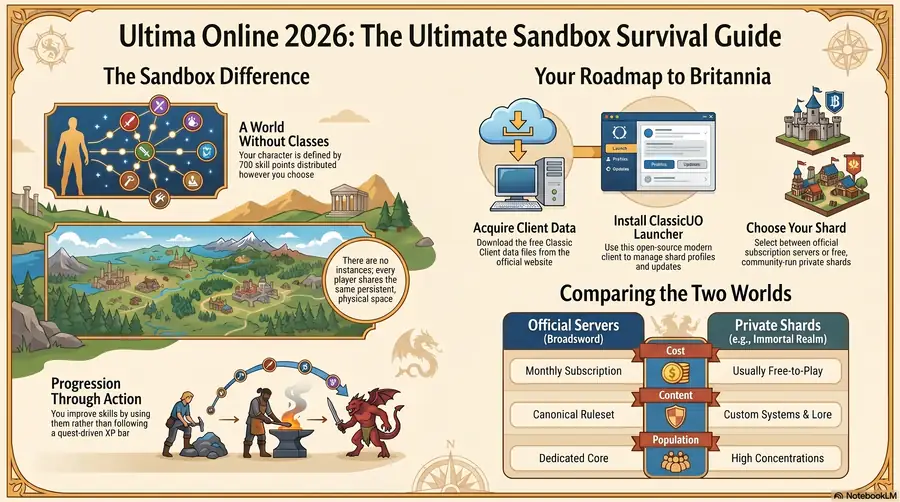
This guide takes you from "I've never played Ultima Online" to "I'm in the world doing things" in roughly 30 minutes of setup. It assumes you're on Windows; ClassicUO works on Mac and Linux too, with similar steps.
The path is: get the Classic Client data files → install the ClassicUO Launcher → create a profile pointing at a shard → make a character → play.
Step 1 — Get the Classic Client Data Files
ClassicUO needs the original UO data files to render the world (art, animations, music, fonts). These files are a free download from the official Ultima Online website at uo.com.
- Visit uo.com and find the Classic Client download (sometimes called the "free trial client" or just "Classic Client").
- Run the installer. Default install location is
C:\Program Files (x86)\Electronic Arts\Ultima Online Classic. - You do not need to launch the official client after installation. All ClassicUO needs is the data folder; the official client itself can stay closed forever.
Take note of the install path. You'll point ClassicUO at it in Step 3.
Step 2 — Install ClassicUO Launcher
ClassicUO is the modern open-source client used by almost every active shard. The easiest way to install and update it is via the official ClassicUO Launcher.
- Visit classicuo.eu and download the Windows installer.
- Run it. Pick a folder for the launcher — not the same folder as the Classic Client install. Anywhere in
Documents\orC:\Games\is fine. - Launch the ClassicUO Launcher. On first run it will download the actual ClassicUO client into
<launcher_folder>\ClassicUO\. Wait for the progress bar to finish.
The launcher manages updates from this point on. You don't have to think about ClassicUO versions — the launcher handles it.
Step 3 — Create a Shard Profile
In the ClassicUO Launcher, click Edit Profiles (or, on a fresh install, the big Create your first profile button).
You'll need:
- Profile name — anything you like. "Immortal Realm" or "My UO Shard" is fine.
- Username / Password — optional; the launcher can save them, or you can leave them blank to be prompted at login.
- Server IP and Port — the shard's connection details. Each shard publishes these on its download/connect page.
- Path to UO files — the Classic Client folder from Step 1.
- Client version — usually auto-detected. If not, the shard's connect page will tell you which version to use.
Save the profile. The launcher's main window now shows it as a connectable entry.
If you're starting on Immortal Realm specifically, the download page lists the IP, port, and recommended client version.
Step 4 — Connect and Create a Character
Click your profile in the launcher and hit Play. ClassicUO opens, connects, and presents a login screen.
- Create an account. On most shards, account creation happens directly through the client — you type a fresh username and password at the login screen and it registers them.
- Log in. You'll land at the character selection screen.
- Click New Character.
Character creation has three meaningful choices:
- Profession. Warrior, Mage, Blacksmith, Paladin, Tamer, Necromancer, Bard, etc. This is not permanent. It only sets your starting skills and gear. You can train any other skill later regardless of what you start as.
- Stats. Strength / Dexterity / Intelligence are split across a starting cap. You can adjust ratios; the cap matters more than the split.
- Starting city. On most shards your character will be moved to a tutorial / new-player area regardless of this choice; it mostly affects flavour.
Pick a profession that matches how you want to start, not how you want to end up. A Warrior with a sword can survive their first hour learning the world; a Mage has a steeper early curve.
Step 5 — Your First Hour
The first hour of UO is the most important. Here's a checklist that works on almost any shard, adjusted slightly for the kind of shard you've chosen:
- Find the bank. Every starting city has a bank. Open your bank box (
Bankmacro or speech command) and verify it works. The bank is your shared inventory across all characters on the account. - Find a trainer. New-player areas have NPC trainers for most skills. Talk to them — they sell skill points up to the basic threshold (usually 30) for gold.
- Talk to the quest givers. Whatever the shard's first-hour quests are, do them. They give you gold, gear, and skill points faster than grinding.
- Don't leave the safe zone. "Safe zone" varies — Trammel, the new-player city, an instanced tutorial. Whatever it is, stay until you have a working set of gear and 50+ in your primary skill.
- Ask for help. Shard Discords are where players hang out. New-player questions are normal. Ask, don't guess.
By the end of the first hour you should have: a profession, a starting set of gear, a working primary skill, ~500-2000 gp in the bank, and a sense of where you are on the map.
Common First-Hour Mistakes
A short list, in order of how often they bite:
- Walking into Felucca too early. Felucca (or the equivalent open-PvP zone) is where experienced players go for high-end content. New characters get killed and looted, sometimes repeatedly. Stay in Trammel until you can hold your own.
- Spending all your gold on equipment immediately. Gear breaks. Save enough for repairs.
- Not opening your bank. Death scatters your inventory. Put valuables in the bank.
- Skipping the new-player quests. They're worth more than the same time spent grinding monsters.
- Trying to do everything yourself. UO is social. Find a guild or just a couple of friends — content is faster and learning is faster.
What Next?
Once you've finished your first hour, you have options:
- Train your primary skill toward 70. Skills 1-70 are quick; 70-100 is the real work.
- Pick a secondary skill. A pure Warrior wants Tactics, Anatomy, Healing. A Mage wants Magery, Eval Int, Meditation, Resisting Spells.
- Try crafting. Even if you're a fighter, mining ore on the side gives you something to do during downtime and a small income stream.
- Find a guild. Most shards have player-run guilds with their own Discords. Join one.
If you're playing on Immortal Realm specifically, the Immortal Realm New Player Guide walks through the recommended professions, the New Haven path, and where to go after your first hour. The pillar Ultima Online Guide covers the bigger picture.