
The Immortal Realm web client lives at play.classicuo.org/?shard=91 and runs the UO game directly in your browser — no install, no external launcher. The trade-off is that the game's art, sound, and animation files have to be downloaded the first time you connect, and they live in your browser's storage afterwards. This page covers what gets cached, where it lives, and how to free that space when you need to.
How to launch it
The fastest path is the Web Client button at the top-right of every page on this site — it pops the client into a chromeless window the same way a desktop game would feel. You can also visit play.classicuo.org/?shard=91 directly from any browser tab.
First-load asset download is roughly 500 MB to 2 GB, depending on what you do in your first session. The client only pulls the chunks it needs, so explorers who roam every map see a larger cache than someone who plays in one city. If you'd rather skip the browser route and run the desktop client instead, head to the Download page — both clients hit the same shard, and your account state is shared.
What gets cached
Three browser storage layers carry the load.
| Layer | What's in it | Rough size |
|---|---|---|
| IndexedDB | The bulk: art, gump, anim, sound, fonts, cliloc files | 500 MB – 2 GB |
| Cache Storage (service worker) | Application code — the JS, WASM, and HTML that boot the client | 10–50 MB |
| localStorage | Tiny preferences — last-character pick, gump positions, settings | Less than 1 MB |
Everything is keyed to the play.classicuo.org origin. Visiting any other site on the same browser doesn't touch this cache, and clearing this cache doesn't touch any other site.
Why incognito mode doesn't work
Private / incognito browsing windows enforce a much smaller storage quota than a normal session — typically a few hundred MB at most. The Immortal Realm asset bundle is bigger than that, so the client fails part-way through the first download. Use a normal browser window for the web client. (This is a ClassicUO Web limitation, not a shard rule.)
How to clear the cache
If you need the disk space back — or you suspect a bad asset got cached during a botched download — clear the site data for play.classicuo.org. Clearing the cache does not delete your characters or progress. That data lives on the shard's server. You're only deleting local copies of the art files.
Microsoft Edge
- Open
play.classicuo.orgin a tab. - Press F12 to open Developer Tools.
- Click the Application tab.
- Top-left of the Storage panel, click Clear site data.
That's one click — wipes IndexedDB, Cache Storage, and localStorage for the origin. Reload the page to verify the next visit re-downloads.
Google Chrome / Brave
- Click the lock icon in the address bar on the play.classicuo.org page.
- Choose Site settings.
- Scroll to Usage → click Clear data.
- Confirm.
DevTools method works the same as Edge: F12 → Application tab → Clear site data button.
Firefox
- Click the shield/lock icon in the address bar on play.classicuo.org.
- Choose Clear cookies and site data.
- Confirm.
Or via Settings: about:preferences#privacy → Cookies and Site Data → Manage Data → search for "classicuo" → Remove Selected.
Safari (macOS)
Safari menu → Settings → Privacy → Manage Website Data → search for "classicuo" → select the entry → Remove → Done.
Mobile
- Chrome on Android: tab kebab menu → Site settings → Clear & reset.
- Safari on iOS: Settings app → Safari → Advanced → Website Data → swipe to delete the classicuo entry.
On-disk paths (power users)
If you want to delete the cache without opening the browser, here's where the storage actually lives on Windows. Close the browser before deleting, otherwise it'll just rewrite the files when it relaunches.
| Browser | Path |
|---|---|
| Edge | %LOCALAPPDATA%\Microsoft\Edge\User Data\Default\IndexedDB\https_play.classicuo.org_* |
| Chrome | %LOCALAPPDATA%\Google\Chrome\User Data\Default\IndexedDB\https_play.classicuo.org_* |
| Firefox | %APPDATA%\Mozilla\Firefox\Profiles\<profile>\storage\default\https+++play.classicuo.org |
To open the IndexedDB folder in Explorer for Edge:
Win+R → paste
explorer "%LOCALAPPDATA%\Microsoft\Edge\User Data\Default\IndexedDB"→ Enter
The folder named after https_play.classicuo.org_* is the asset cache. Its size on disk is the actual storage cost.
When to clear vs. when to leave it alone
You probably don't need to clear the cache as routine maintenance. The browser's storage manager handles eviction itself if disk space gets tight, and the cache speeds up every subsequent session. Clear it when:
- You're freeing disk space and the cache is genuinely the biggest line item.
- The web client is misbehaving in a way that suggests bad data — repeated load errors at the same point, missing art, sounds that never play. Clearing forces a fresh re-download.
- You're switching browsers or moving machines and want to start clean on the new one.
Otherwise: leave it alone. The cache is what makes the second-and-onward web-client launches feel instant.
When in doubt
If you've cleared the cache and the web client still misbehaves, the issue is server-side or browser-side rather than cache-side. Open a thread in the help channels (see Help and Support) with which browser you're on, what error you're seeing, and what you tried — staff or other players can usually pinpoint it quickly.
Visual reference
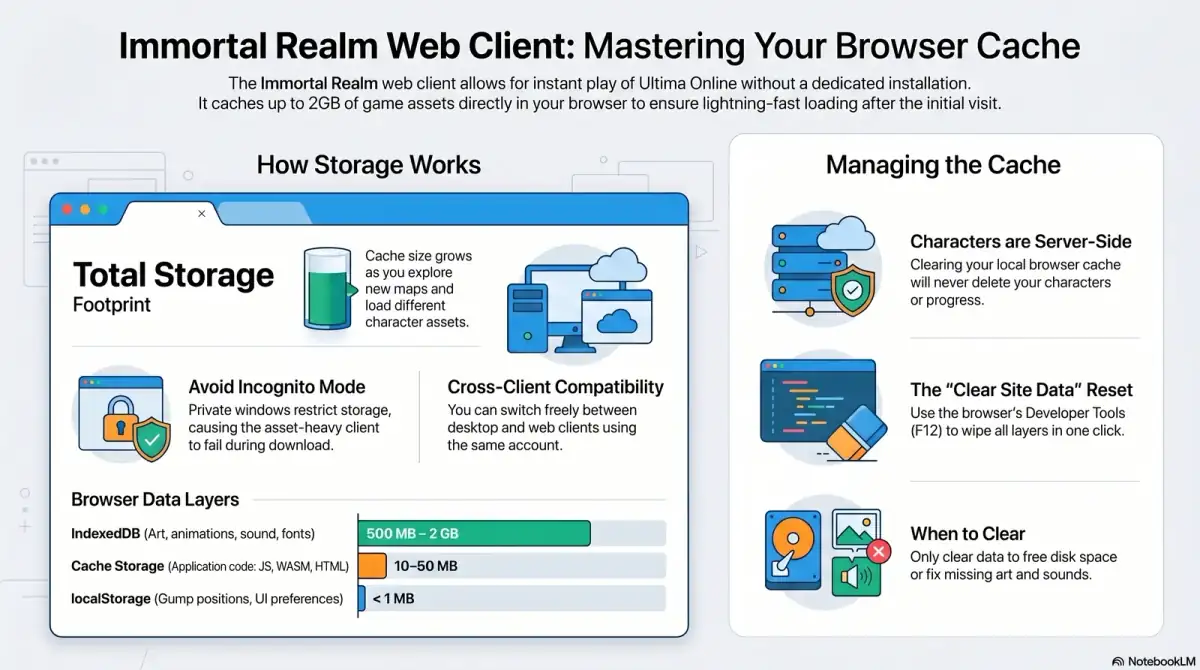
Click to enlarge.
Slide deck
For a longer-form, slide-style walkthrough of how the web client boots, what it caches, and how to clear it:
Immortal Web Client Technical Guide — full slide deck (PDF) · PowerPoint version