Ultima Online is a trademark of its respective owners. Immortal Realm is an independent community shard and is not affiliated with or endorsed by the official Ultima Online publishers. This guide explains how to set up a free open-source UO client and connect to a private shard.
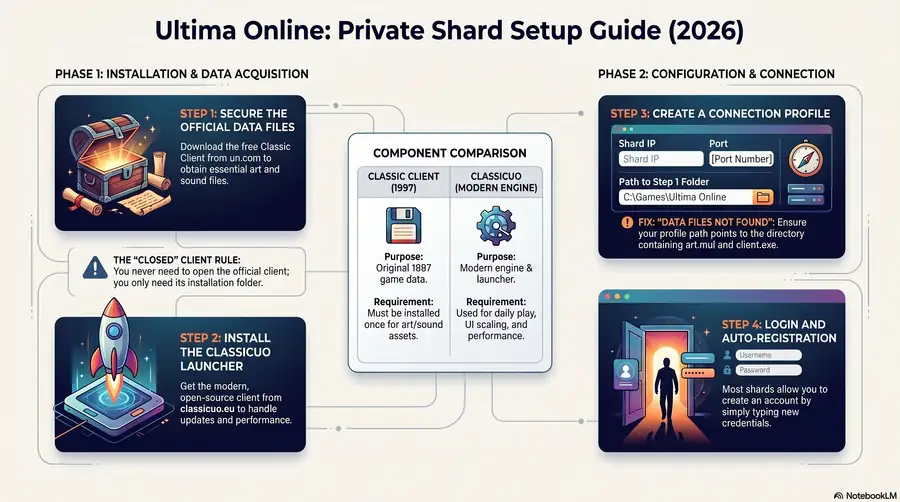
This guide walks through the complete UO client setup for connecting to private shards in 2026. It covers acquiring the Classic Client data files, installing the ClassicUO Launcher, setting up a connection profile, and troubleshooting common issues. Specific shard connection details (IP, port, version) come from the shard you're connecting to.
The path is: Classic Client data files → ClassicUO Launcher → connection profile → connect.
Step 1 — Get the Classic Client Data Files
ClassicUO renders the world using the original UO data files (art, animations, sound, fonts). These files are still distributed for free by the official Ultima Online website.
- Visit uo.com and find the Classic Client download. It's sometimes called the "free Classic Client," "free trial client," or just "Classic Client."
- Run the installer. The default install location on Windows is:
C:\Program Files (x86)\Electronic Arts\Ultima Online Classic - You do not need to launch the official client after installation. You only need the data folder. The official client itself can stay closed forever; it's not the client you'll be using to play.
- Take note of the install path. You'll point ClassicUO at it in Step 3.
The Classic Client install is a one-time step. Once you have the data files, every shard you connect to will use the same files.
Step 2 — Install the ClassicUO Launcher
ClassicUO is the open-source modern client used by almost every active private shard. The easiest way to install and update it is via the official ClassicUO Launcher.
- Visit classicuo.eu and download the launcher installer for your platform (Windows, macOS, or Linux).
- Run the installer. Pick a folder for the launcher — not the same folder as the Classic Client install. Anywhere in
Documents\orC:\Games\is fine on Windows. - Launch the ClassicUO Launcher. On first run it downloads the actual ClassicUO client files automatically — wait for the progress bar to finish.
The launcher manages updates from this point on. You don't have to think about ClassicUO version numbers; the launcher handles it.
The downloaded ClassicUO client files land in <launcher_folder>\ClassicUO\. You don't need to do anything with that folder directly — the launcher manages it.
Step 3 — Create a Shard Connection Profile
In the ClassicUO Launcher, click Edit Profiles (or, on a fresh install, the big Create your first profile button).
You'll need to fill in several fields:
- Profile name — anything you like. The shard's name is a sensible choice ("Immortal Realm").
- Username / Password — optional. The launcher can save them so you're auto-logged-in, or you can leave them blank and be prompted at login.
- Server IP and Port — the shard's connection details. Each shard publishes these on its download / connect page.
- Path to UO files — the Classic Client data folder from Step 1.
- Client version — usually auto-detected. If not, the shard's connect page will tell you which version to use.
Save the profile. The launcher's main window now shows the new profile as a connectable entry.
For Immortal Realm specifically, the download page lists the canonical IP, port, and recommended client version, plus a one-click launcher walkthrough.
Step 4 — Connect
Click your profile in the launcher and hit Play. ClassicUO opens, connects to the shard, and presents the login screen.
On most shards, account creation happens directly through the client:
- At the login screen, type a fresh username and password.
- Press Enter / click Login.
- The shard registers a new account with those credentials and logs you in.
If the login fails with "account does not exist" and there's no auto-registration, check the shard's connect page — some shards require web-side registration before in-game login.
After login, you'll land at the character selection screen. Click New Character to start your first character.
Common Setup Issues
A short list, in order of how often they happen:
"ClassicUO can't find the UO data files"
Your "Path to UO files" in the profile is pointing at the wrong folder. The correct folder is the Classic Client install directory — the one that contains client.exe, art.mul, anim.mul, and similar .mul files. Adjust the path in the profile and try again.
"Wrong client version"
The shard expects a specific Classic Client version. If your installed version doesn't match, the launcher's profile editor lets you set the version manually. Check the shard's connect page for the recommended version string and paste it into the profile.
"Cannot connect to server"
Either the shard is down, your firewall is blocking the connection, or the IP / port in your profile is wrong. Check the shard's status page or Discord first; if the shard is up, double-check the IP and port. Some firewalls (and some VPNs) block outbound traffic on non-standard ports — try without the VPN if you have one.
"Account does not exist" but you just created it
A few shards require web-side registration before you can log in. Check the shard's documentation. If web-side registration isn't required, try logging in once more — first-time auto-registration sometimes takes a second attempt to land.
"The launcher won't download ClassicUO"
Antivirus software occasionally flags the launcher's download script. Whitelist the launcher folder, or temporarily disable the antivirus while the first download completes.
What's Next
Once you're connected:
- Read How to Play Ultima Online for character creation, the first hour, and what UO actually plays like if you've never tried it.
- Read Ultima Online Builds for proven character template choices.
- Read the shard's own new-player documentation. Each shard has its own conventions — recommended starting profession, opening quest line, in-game help system, Discord channels.
For Immortal Realm specifically, the Immortal Realm New Player Guide is the right next read. The download page is the connection on-ramp with the shard's specific IP and port.
The pillar Ultima Online Guide is the bigger picture if you want to step back and learn what UO is before committing to a specific shard.
Slide deck
For a step-by-step ClassicUO setup walkthrough in slide format:
ClassicUO Setup Guide — full slide deck (PDF) · PowerPoint version